If you’ve ever put in an 128 GB, 64 GB, gigabyte or even a 1TB USB drive and you wanted to format it using FAT32 you’ve likely observed that Windows does not make it simple. The FAT32 option isn’t always available or you may see an error such as “The volume is too big for FAT32.” So, how do you format drives with more than 32 GB into FAT32?
In this comprehensive guide, you’ll discover the reason why the 32GB limit exists, how you can overcome it, the best software tools to utilize as well as the advantages and disadvantages of FAT32 and step-by-step directions to format large drives efficiently.
Let’s get started.
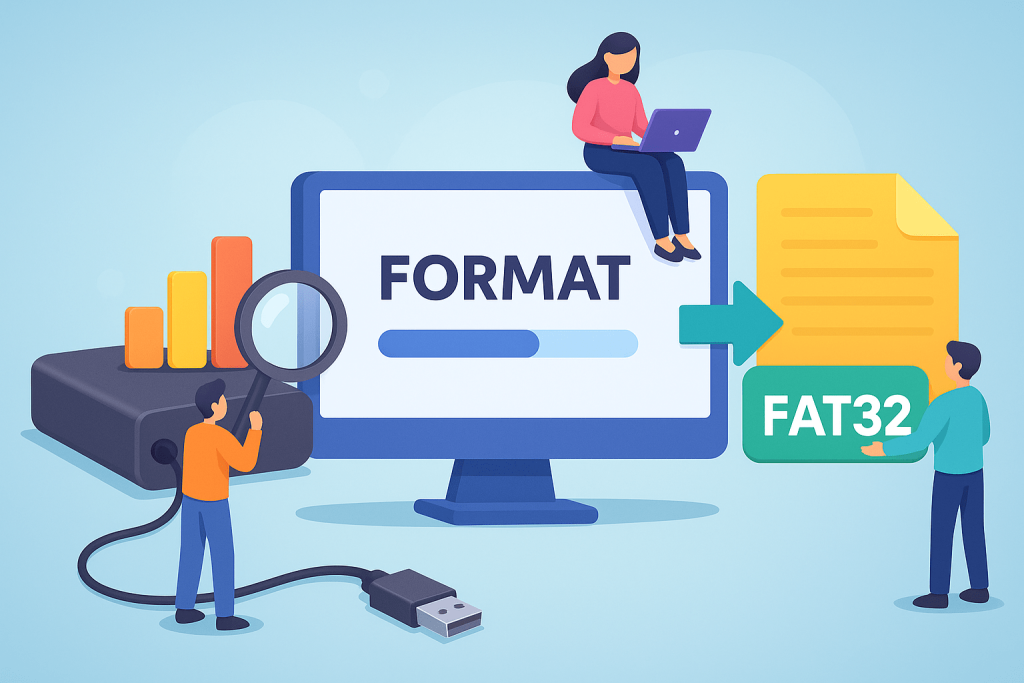
Why Windows Limits FAT32 to 32 GB
If you right-click on an drive within Windows File Explorer or use Disk Management, you’ll notice that FAT32 isn’t listed for drives that exceed 32 GB. It’s because FAT32 is able to handle greater volumes, up to 2TB with traditional sectors and even more by using larger sectors.
Then why do Windows limit itself to 32GB? It’s a limitation Microsoft implemented into the graphical interface for Windows software for formatting. Windows is able to access larger FAT32 drives however it is unable to build them with the GUI tools that are built-in to Windows.
In other words, the 32GB limit isn’t really a technical limitation of FAT32. It’s an actual Windows formatting limit that can be escaped with command-line tools and third-party software.
Software Options to Format Drives Larger Than 32 GB to FAT32
Since Windows does not support FAT32 formatting beyond 32 GB using its default interface You have two main choices: command-line options or third-party software.
1. Command-line methods
If you’re looking to use built-in Windows tools Try using Command Prompt or PowerShell.
Example command:
format / FS:FAT32 F:(Replace F with the letter of your drive.)
This can work for larger drives, but could be extremely slow or fail due to “Volume too big for FAT32.” Another option is using diskpart to choose and format the drive manually, however results can vary based on the drive’s size.
2. Third-party FAT32 format tools
Many people utilize dedicated formatting software that can bypass Windows the limit of. The most popular options are:
- DiskGenius Free Edition – allows formatting USB drives, SD cards, and external hard drives to FAT32 when they are larger than 32 GB.
- HP USB Disk Storage Format Tool is a well-known tool that is often used to perform huge FAT32 formatting.
- Other partition managers – a lot of free programs offer the ability to format drives that are larger than 32 GB using FAT32.
When selecting a FAT32 formatting tool Look for:
- Support for drives with a capacity of more than 32 GB.
- Control over allocation unit (cluster) size
- Full format and quick-time options
- Integrity with your OS
- Alerts or prompts to backup your data to ensure security
As I tested, DiskGenius efficiently formatted a 128 GB SD card into FAT32 to be used in an older camera. The process took a bit longer than the norm however it was able to function perfectly following the format.
Performance Considerations
If you format a large drive with FAT32 efficiency and performance depend on the settings.
The size of the cluster has an impact on
Selecting the right size cluster is essential. Smaller clusters use less space, but they can cause a slowdown. Larger clusters can speed up big-file operations, but eat up space with smaller files. For drives with 128 GB or more the sizes of clusters that are 32 KB and 64 KB are typically an acceptable compromise.
Speed and efficiency
Formatting large volumes takes time. A speedy format is quicker but doesn’t look for bad sectors. FAT32 is more old than exFAT or NTFS and therefore doesn’t have any performance enhancements. If you are working using small files, you could be experiencing slower performance when compared to NTFS.
Compatibility with. performance
FAT32 is still a popular choice due to its broad compatibility, even though it’s slow for certain applications. The most significant drawback is the maximum 4 GB file size. It is impossible to save individual files that are bigger than 4 GB on the FAT32 drive.
Advantages of Formatting Large Drives to FAT32
In spite of its age FAT32 remains a strong advantages.
1. Universal compatibility
FAT32 is supported by Windows, macOS, Linux gaming consoles, smart TVs cameras and even car infotainment systems. This makes it perfect if you want a single drive that can be used across several devices.
2. Simple management
FAT32 has been in existence for a long time, and is supported by almost all OS and recovery tools. It’s easy, stable, and reliable for basic storage of data and sharing media.
3. No licensing issues
In contrast to some of the newer file systems, FAT32 is open and free to use. It doesn’t require additional drivers or permits to use it on a wide range of platforms.
If you’re looking for an external drive that can be used everywhere -for video, photos and music filesFAT32 is an excellent option.
Disadvantages of FAT32 on Large Drives
If you are considering formatting drives that are larger than 32 GB with FAT32 format, you must be aware of its limitations.
1. 4 GB maximum file size
There is no way to store a single file that is larger than 4GB on FAT32. Massive video files, system pictures or archives won’t be able to fit. This is a firm limit that can’t be escaped.
2. Not utilizing advanced features
FAT32 does not have modern features for a file system like journaling encryption, compression, and journaling. It’s less secure than NTFS in the event of power outages or sudden disconnections.
3. Space inefficiency
Large FAT32 partitions can be fragmented or unused space if the size of the cluster is not sufficient.
4. Complexity of setting up
Since Windows limits FAT32 formatting to 32 GB or more you’ll require command-line utilities or third-party software that includes additional steps. Always backup your data prior to formatting.
When and How to Format a Large Drive to FAT32
When it makes sense.
Use FAT32 for:
- You must ensure the highest level of compatibility across devices
- Your files are all less than 4 GB each
- You don’t require encryption or permissions, nor compression
If you are working using large files (for example, 10GB videos) you should consider exFAT or NTFS instead.
Step-by-step: Format Large Drives to FAT32 on Windows
Step 1: Backup your data
A formatted file erases all of your data. Copy your files to another place first.
Step 2: Remove any partitions that are already in use (optional)
Open Disk Management (Win + X – Disk Management). Delete existing volumes if necessary.
Step 3: Select the format method you want to use.
Method A: Command line
- Open Command Prompt as Administrator.
- Type:
format F: /FS:FAT32/QReplace F by your drive letter. - Hold Enter, and then wait for it to finish.
Method B Method B: Third-party software
- Open a trusted FAT32 formatting tool, such as DiskGenius.
- Select the drive, then select Format as FAT32.
- Select an allocation dimension (32 Kb or 64 KB are the most common).
- Begin formatting, and then be patient for confirmation.
Step 4: Verify
Check the properties of the drive in File Explorer. Verify that the file system is “FAT32” and capacity is correct. Test by copying files, then connecting your device to the target.
FAT32 Formatting on Mac and Linux
On macOS, you can use Disk Utility and choose MS-DOS (FAT) to create an FAT32 volume.
On Linux you can make use of this terminal command:
sudo mkfs.vfat -F 32 /dev/sdX1 Replace sdX1 by your actual device’s name. Both macOS and Linux support FAT32 formatting on large drives, without the limitation of 32GB.
Common FAT32 Limitations and Tips
- Limit on file size Limit on the size of a single file to 4 GB.
- Limits on partitions: FAT32 supports up to 2 TB, however certain devices and tools may still impose smaller limits.
- Device limitations Some devices require exFAT for drives that are larger than 32 GB.
- Data integrity: Always remove FAT32 drives in a safe manner to prevent corruption, as FAT32 isn’t journaled.
If you use the drive to transfer smaller media or files, FAT32 is ideal. For backups or archives that are large opt for NTFS or exFAT instead.
Final Thoughts
To summarize:
- The 32GB FAT32 limit on Windows is a design limitation and not a technical one.
- It is possible to format drives bigger than 32 GB into FAT32 with commands line programs or software from third parties.
- Always backup the files you have first.
- FAT32 is ideal to support cross-platform and smaller files.
- For files greater than 4 GB, you can use exFAT or NTFS.
In my experience formatting large drives such as 64 GB, 128 GB or even 1TB, to FAT32 is a breeze using the correct tool. After formatting, the drives function well for normal media usage and can be read with nearly every device.
Frequently Asked Questions (FAQ)
Q How do I format a 1TB drive using FAT32?
Yes. FAT32 can handle volumes of up to 2TB or more, based on the size of the sector. It is just a matter of using the correct tool.
Q Do I lose performance by using FAT32?
Possibly. FAT32 is less efficient than NTFS or exFAT when it comes to complex or large structure of files, however it is it is fine for media and general-purpose use.
Q What is the reason Windows restrict FAT32 formatting to 32 GB?
It’s a design feature that’s different from Microsoft’s earlier tools. FAT32 itself can handle much larger volumes.
Q: Can FAT32 store large files like 8 GB videos?
No. FAT32 has a maximum of 4GB maximum size for files. Use NTFS or exFAT for larger files.
Q What happens if an FAT32 drive work on every device?
Most people will recognize it but it’s not for everyone. Always test your device of choice to confirm.
